
The Fueling Tools are one of six Athlete Content views. You can access the Fueling Tools from the Nav Bar or from the Athlete Views Select Box within the Roster Hero Bar. Within the Athlete Views, you can view the Season Road Map using the quick link  in the Athlete Title Bar.
The Fueling Tool provides a comprehensive system to manage and plan your athlete’s training and race day fueling strategies.
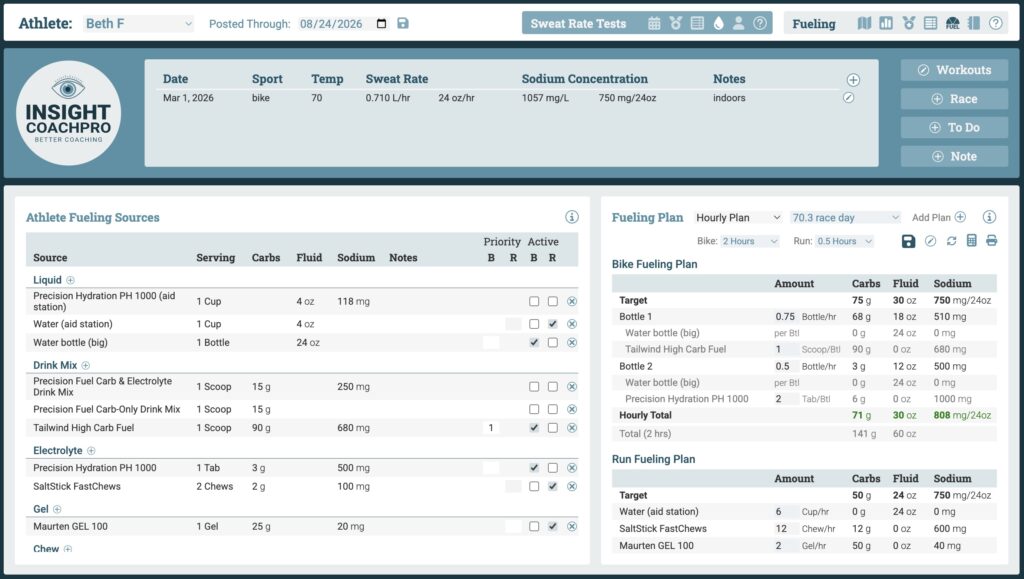
The Fueling Tool uses Fueling Sources, Targets, and Plans to build and define your athlete’s nutrition strategy for training and racing. Add Sources to the athlete’s Fueling Sources list, then set them to Active for the bike and/or run to include them in a Fueling Plan. (Think of the Fueling Sources list as the products they might use depending on preferences, duration, and environment, and Active Sources as those they will use in the current Fueling Plan.) Targets define the athlete’s hourly nutrition goals, and the Plan brings it all together — optimizing serving quantities for each Active Source to best achieve the Fueling Targets.
Working with Fueling Sources
Working with Fueling Sources #
Fueling Sources are the basis for every Fueling Plan. The athlete’s Fueling Sources are grouped by Type. Click + beside any Type heading to add Sources of that Type.
- The app contains a list of commonly used sources — Liquids, Drink Mixes, Electrolytes, Gels, Bars, and Chews — along with their nutritional content per serving (carbohydrates, fluid, and sodium)
- Use the Type dropdown to switch between lists of Liquids, Drink Mixes, and so on
- Use the Sort dropdown to sort by Name, Carbs, Fluid, or Sodium
Click the  at the end of a row to remove a Source from the list entirely. (The Source will be removed from the list but not the library.)
Universal Sources (built into the system) are available to all. Custom Sources — marked with a colored dot — allow you to add Sources not included in the universal list.
Adding Custom Sources
Adding Custom Sources #
If your athlete uses a product that isn’t in the universal library, you can add it.
- Click + next to any Source Type, then click + New Source at the bottom of the window. Enter the product name, serving size, and nutritional content (carbs, fluid, and/or sodium per serving)
- Choose whether the Source is available to this athlete only (indicated by in the Fueling Sources list) or to all athletes on your roster (indicated by in the Fueling Sources list)
- New Sources are added to the list unchecked — set them Active for Bike and/or Run when you’re ready
Click the at the end of a row to delete a Source from the list and your library.
Selecting Active Sources
Selecting Active Sources #
The athlete’s Fueling Sources list shows every Source you’ve added, grouped by Type. Use the Active checkboxes to indicate which Sources will be used when creating a Fueling Plan.
- Tick the checkbox in the B column to make a Source Active for the bike, in the R column for the run
- A Source can be Active for one sport, both, or neither
- Only Active Sources are used when adding or regenerating a Fueling Plan
Note: Drink Mixes and Electrolytes include only the mix, tab, etc. A Drink Mix must be assigned to a Liquid when you build the Fueling Plan, so you’ll want an Active Liquid, such as a water bottle. If there isn’t one, you can add it during Step 2 of creating the Plan.
Prioritizing Active Sources
Prioritizing Active Sources #
Give Active Sources a priority to control the order they’re listed in the athlete’s Fueling Plan and used by the Auto-Fill feature.
- Type a number in the Priority column, separately for Bike and Run
- 1 is highest; the rest renumber themselves as you go
- Priority is optional — leave it blank and the Source is used after any prioritized ones
Working with Fueling Targets
Working with Fueling Targets #
Once your athlete’s Sources have been chosen, Targets define the athlete’s hourly nutrition goals.
Targets define the hourly nutrition goals the Plan will try to achieve. You can create and save multiple Targets per component for each sport — for example, a “Low” and “High” carb Target — and choose between them when building different Plans.
View and add Targets from the Fueling Plans Fueling Targets view.
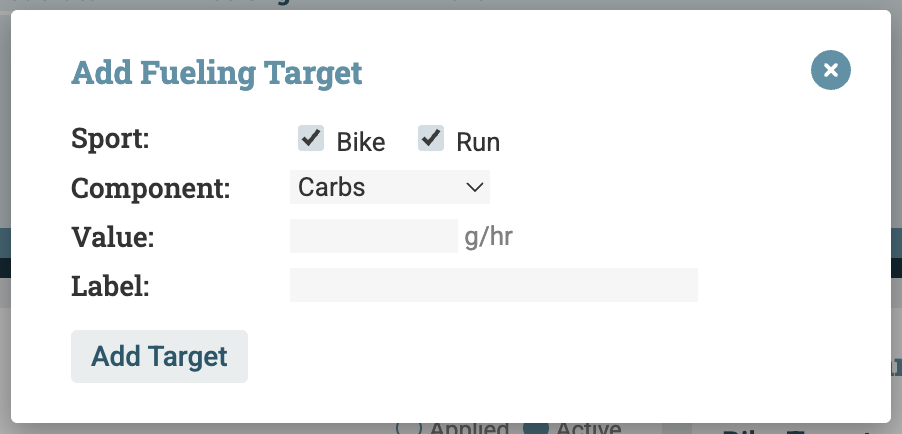
- Click Add Target and select the sport (Bike and/or Run) and component (Carbs, Fluid, or Sodium)
- Enter the Target value
- Add an optional label to identify it — for example, “Race Day”, “Hot Weather”, or “Training”
Working with Fueling Plans
Working with Fueling Plans #
The Plans bring it all together — optimizing serving quantities for each Active Source to best achieve the Fueling Targets.
Create a Fueling Plan
Create a Fueling Plan #
Create a Plan to transform your athlete’s Sources and Targets into a fueling strategy.
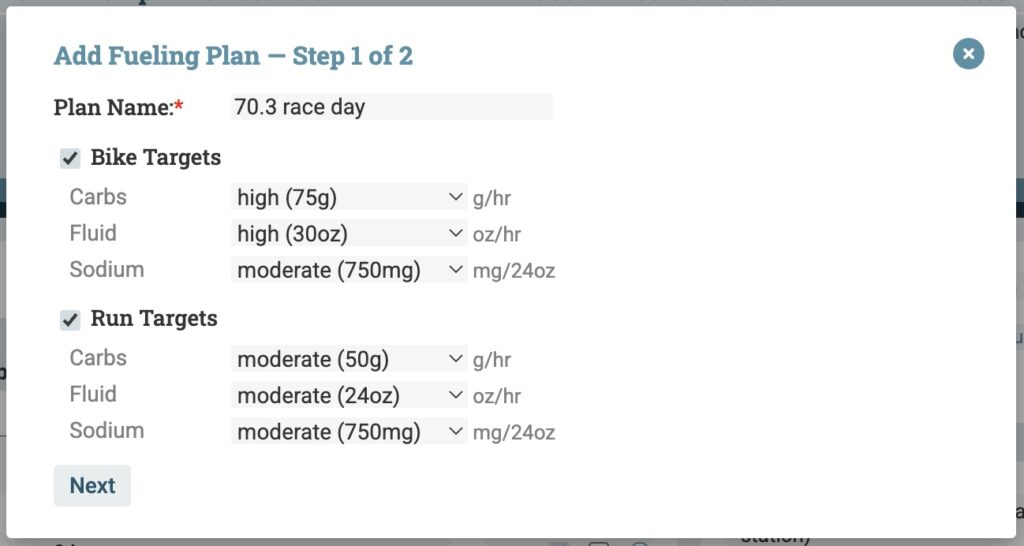
- Click Add Plan and give it a name — including the date, event, or context makes it easy to find later
- Check the sports to include (Bike and/or Run)
- For each sport, assign a Carbs Target, Fluid Target, and Sodium Target from the saved Targets
- Click Next to move to Step 2, where you will assign Drink Mixes and Electrolytes to their containers — see Bottles and Their Contents below
- The Plan will automatically incorporate all currently Active Sources for each sport
Drink Mixes and (many) Electrolytes aren’t consumed on their own — they go into a Bottle. Step 2 in creating the Fueling Plan is to match those Sources to the Liquids they’re mixed into, so the Plan ultimately includes a Bottle that holds one or more Sources at a specific concentration.
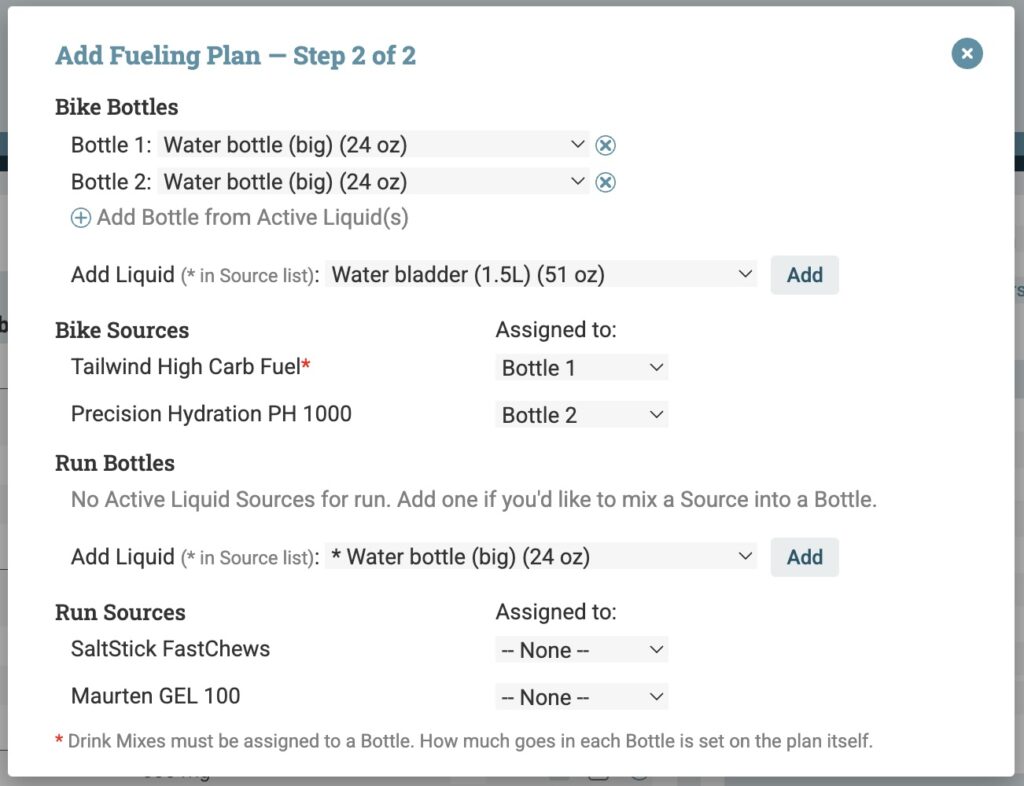
- Every Active Liquid Source becomes a Bottle; use Add bottle for a second Bottle of the same liquid — useful when you want one Bottle to carry a Drink Mix and the other to carry an Electrolyte
- Each Drink Mix must be assigned to a Bottle, since a mix has to be dissolved in something
- Electrolytes and Gels can go in a Bottle or be taken on their own
- Multiple Sources can be assigned to the same Bottle
- No Active Liquid available? You can add one within Step 2, no need to go back to the Fueling Sources list
Define Hourly Serving Quantities
Define Hourly Serving Quantities #
The Plan displays a table for each sport with a row for each Active Source and an input for servings per hour. You can set hourly serving quantities in one of two ways:
- 1: Manually type serving values into each input field, or
- 2: Use the
 icon to open Auto-Fill, which automatically optimizes Source servings to match your Targets as closely as possible
- Choose the optimization order — for example, optimize Carbs first, then Fluid, then Sodium
- The algorithm respects each Source’s serving-size constraints (e.g., you can’t use a third of a gel) and follows your Source priority order
- After Auto-Fill runs, you can still manually adjust any values
 icon to open Auto-Fill, which automatically optimizes Source servings to match your Targets as closely as possible
Review and Refine Your Plan
Review and Refine Your Plan #
As you adjust Source servings and/or use the Auto-Fill feature, the Plan updates in real time.
- The Target row shows your goals
- The Hourly Total row shows the calculated totals for carbs, fluid, and sodium based on current Source servings
- Totals are color-coded to show how close you are to the Target:
- Green — within 10%
- Yellow — within 25%
- Red — more than 25% away
- The Total row shows projected totals for the full duration of the workout or race
If the Plan isn’t to your liking, you can update Source priorities, swap Active Sources, or even Apply and Activate new Sources to fill gaps in the Plan. After changing your Active Sources, click the  icon to update the Plan with the current Active Sources.
Save and Print
Save and Print #
When you’re happy with the plan:
- Be sure to save your Plan once you are happy with it
- Use the duration dropdowns to adjust Bike and Run hours, which updates the Total row and carries through to the printed view
- You can also use the Print button to produce a printer-friendly / PDF version to share with your athlete.
 your Plan once you are happy with it
 to produce a printer-friendly / PDF version to share with your athlete.
You can also Edit  a saved Plan to rename it, change sports, or choose different Targets, and use the Plan dropdown to switch between multiple saved Plans.